
Store region
Confirm that the listing reached from Verde is available for your Canadian store region and supports your current operating-system version.
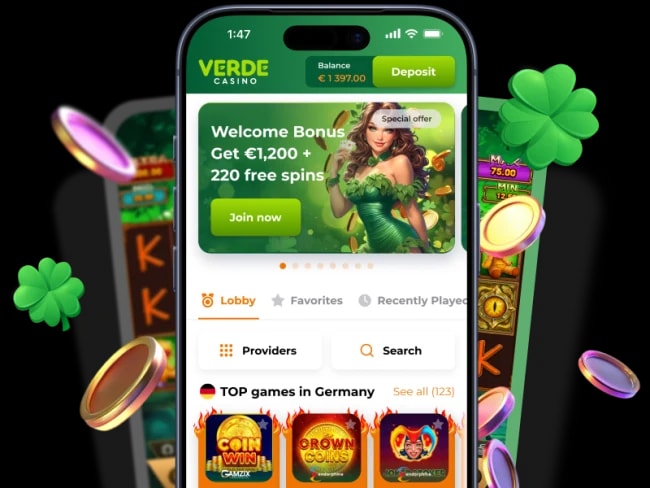
Start with the phone you use and the store region attached to it. Android uses the APK route in Verde’s app panel; iPhone uses the listing linked from that panel. A Canadian App Store search may not show the same name or icon.
Keep your existing account, balance and account currency when changing devices. The browser version is available as an installation-free option wherever the service permits access; neither a download nor a Canadian page confirms eligibility in your province or territory.
Open the device-specific panel before downloading. It currently lists Android 8.0.0+ and iOS 12.0+, but the requirement shown for the actual package or store listing takes precedence. Store availability and account eligibility are separate checks.
| Device | Current installation path | Before you start |
|---|---|---|
| Android | Use the APK download reached through Verde’s Android panel | Check Android compatibility and the source requesting installation permission. |
| iPhone | Follow the iOS panel to the linked App Store entry | Use your existing Canadian store region; do not assume a matching search result is the intended app. |
| Mobile browser | Sign in through the mobile account service | No installation; the same location, account and provider restrictions apply. |
A Canadian App Store or Google Play region can affect which listing appears, while an Android package follows the current route shown inside Verde. Confirm the device requirement, publisher details and installation source before downloading anything.
Canada uses CAD, but app rewards and limits on this page are published in EUR. A download does not confirm provincial eligibility, a CAD wallet or access to every feature; the account and your province or territory determine what is available.
Start with the mobile browser if you want to inspect the lobby without changing device settings. It uses the same account and is also the practical fallback when the intended store listing is unavailable for a Canadian store region.
For Android, follow the package route displayed by Verde at that moment and review the one-time installation permission. For iPhone, follow the account route to the intended listing rather than choosing an app only because its name looks similar.
After signing in, check the account currency and the exact reward panel. Shake Bonus and Piggy Bank are product features with their own device and wagering rules; neither converts a published EUR figure into a guaranteed CAD reward.
Confirm that the listing reached from Verde is available for your Canadian store region and supports your current operating-system version.
Make sure Canada and your province or territory are accepted for the account before treating installation as a route to real-money play.
Read the currency shown in the account and the terms attached to the specific app reward; do not apply an assumed EUR-to-CAD conversion.
On your Android phone, open Verde’s Get App panel and choose Android. Read its current system requirement before selecting the package. A similarly named download in an APK directory is not a substitute for that route.
Let the APK finish downloading and open that file from the browser’s download list. If you have downloaded several versions, check which file came from the current Verde panel before proceeding.
Android may ask to let that browser install an app. Review the request for the file you just selected; do not turn off device protection generally. You can remove the browser’s temporary installation permission once the app is installed.
Open the app and use your registered email and current password. Check the account currency and balance before opening the cashier. Moving to a phone does not require another player registration.
Select iOS from Verde’s current app panel on the iPhone. Follow its listing link rather than guessing from the casino name in search. The panel warns that the App Store name or icon can differ.
Read the compatibility and availability notice with your normal Apple ID region. If the listing is unavailable, ask support about the current supported option. Do not change store country or use location tools to work around a restriction.
After the store download finishes, open the app and sign in to the account you already use. Your account currency remains an account setting; the currency of your Apple ID does not convert a bonus or balance into CAD.
Look at the offers actually available after login. The published Piggy Bank feature is specific to the Android native app, so an iPhone installation does not establish eligibility for it. Notification settings are your choice.
A desktop session and a mobile session use the same registered player account. Check the email shown in the profile if a saved login opens an unexpected screen; do not create a second account to recover a missing balance.
Use password recovery when credentials fail. An account review, geographic restriction or self-exclusion will not disappear after reinstalling. Keep the exact notice when contacting support so the issue can be distinguished from a device error.
On a shared phone, sign out and remove saved credentials when you finish. Keep verification codes private and review lock-screen previews for account notifications. Support does not need your password to investigate an installation issue.
The app instructions describe finding Shake Bonus in Bonuses, activating it and shaking the phone to reveal the available reward. Its presence and conditions in your account determine whether you can participate.
The public description does not establish a fixed cash amount or universal wagering-free payout. Read the actual reward after it is shown, including any deposit requirement, wagering, maximum conversion and expiry. Installing the app alone is not a promise of a withdrawable bonus.
The loyalty programme identifies Piggy Bank as exclusive to the Android native app. It accumulates a status-dependent 1% to 8% from eligible net losses on real-money slot play, with a maximum of €3,000. Check Menu → Piggy Bank for the amount available to your account.
The claim window is Tuesday 00:00–23:59 UTC, and an unclaimed amount expires. The credited reward has 25× wagering, five days to wager and a conversion limit equal to the bonus received. This is bonus credit based on qualifying activity, not money saved in a bank account.
Use the game categories available in your mobile account to explore slots and live casino. Individual providers can have country, device or currency restrictions, and live games may require a stable connection. Check the game's help screen for controls, paytable and any orientation requirements.
Where a demo is available, it uses virtual credits. Those credits cannot be withdrawn or moved into a real-money balance, and demo play does not count towards bonus wagering. A practice session can help you learn the controls without telling you what your next paid session will return.
Before a real-money session, check which bonus is active and whether the chosen game contributes. Live casino, table and instant games are excluded from general casino bonus wagering. A touch-friendly interface does not change the underlying game or offer conditions.
| Situation | What to check | Next useful step |
|---|---|---|
| An update is offered | The update prompt in the app or its current installation instructions | Follow the current update route and review any new permissions. |
| Installation is unavailable | Device version, account region and the current listing | Use the mobile browser if eligible, or ask support about device support. |
| Login is rejected | Registered address, latest password and any restriction notice | Use account recovery or contact support; do not create another account. |
| One game does not open | Whether other games load and the provider is available | Record the game title and error for support. |
| An app reward is missing | The eligible app, activation, status and claim deadline | Ask about the specific reward before making further qualifying deposits. |
Open the cashier before selecting an amount. If your funding account uses CAD and Verde shows a different transaction currency, check the conversion and any charges with the payment provider. Euro reward figures on this page are not promised Canadian-dollar credits.
Interac availability must be confirmed in the account, separately for deposits and withdrawals. A familiar payment logo or a Canadian bank account does not establish a supported cashout route. Payment details must belong to you.
Use the same account support process for mobile verification, payment delays and limits. Keep the transaction currency, reference and status together. Installing an app does not speed up payment approval or remove required checks.
The current app panel provides iOS installation instructions and a route to its current App Store listing. Check the listing and region availability when downloading; the instructions note that its name and icon may differ.
No. The mobile browser is another option where account and game access are available. App-specific rewards can have additional conditions, so browser use should not be assumed to qualify for them.
No new registration is needed if you already have a Verde Casino account. Use the existing email and password. Recover that account if needed rather than opening a duplicate.
The loyalty programme describes it as an Android native-app feature. Check its availability in your own app, along with status, eligible play, Tuesday claiming and wagering conditions.
No universal deposit-free sign-up reward is confirmed by the current public offers. Check the reward actually shown to your account. Welcome free spins, Shake rewards and Piggy Bank have distinct conditions.